Background
DPD Local has introduced a new portal and API connection that will replace the existing integration. Going forward, new functionality and updates will be developed through the new API.
This includes all international changes, such as the new EU Product Identifiers (see International details). These are only available in (New) DPD Local, not in the old DPD Local integration.
We recommend starting your migration early, so you have time to set up and test.
For full setup instructions, see the DPD Portal Instructions.
Scenario
I need to move my existing DPD Local services to the (New) DPD Local integration.
Before you start
|
Solution
1. Add (New) DPD Local integration to your Linnworks account.
Add (New) DPD Local to your Linnworks account. For more details, see (New) DPD Local shipping integration.
When you enter your Shipper address, keep Address Line 1 and Address Line 2 together to 35 characters or fewer. If the address is longer, put the rest in Address Line 3.
Save the integration. You can then reopen the configuration to add Shipment References and Export Details, if you need them. When you've finished, check all details are correct and save.
2. Remove DPD Local services.
- Go to Shipping > Integrations > DPD Local > Services.
- Click the bin icon to remove the service
- Click Finish.
Tip: We recommend moving one service first. Remove it, add it to (New) DPD Local and link it (steps 2 to 4), then test it. If everything works as expected, move the rest.
3. Add services to (New) DPD Local.
Go to the Services tab under (New) DPD Local and add the required services from the dropdown: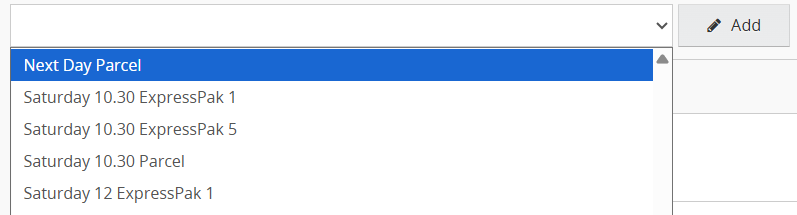
Test your services before you move on, for example by printing a test order.
4. Link existing postal services.
Click the link icon next to Edit and select the relevant unlinked Linnworks Postal Services from the list.

You don't need to create new postal services or update your Rules Engine or other automations. They stay in place and use the new integration.
5. Configure Service Settings.
Click Edit next to the service to enable features such as Extended Liability, Customs Value Includes Tax, and others.
Select the required options, click OK, then click Finish to save the configuration.
Keep in mind: If you select the Extended Liability option for any service, make sure the Order Extended Properties include both ExtendedLiabilityAmount and ExtendedLiabilityCurrency. More details can be found here.
6. Configure Printer Settings.
Once the Services have been added and configured, go to Shipping > Integrations > (New) DPD Local > Printer Config.
Ensure that the correct default printer, or user printer depending on your previous setup, and the appropriate template are selected.
Click OK when you're happy with the settings.
7. Configure international details
Once the integration is set up, complete the international details below. These are needed for shipments that go through customs.
Shipper EORI and VAT numbers
Open the (New) DPD Local configuration and enter your EORI and VAT numbers in the Shipper details. Save the configuration.
Map your item properties
Go to Shipping > Integrations > (New) DPD Local > Properties. Link each of these properties to the correct Item or Order Extended Property:
- HS Tariff Code
- Commodity Description
- Fabric Content (Material)
- Country of Origin
- Any other properties you need
Open the Properties tab and check that each dropdown shows the property you mapped. If a dropdown is empty, the property isn't mapped. Save your changes when you're done.
EU Product Identifiers (new)
From 1 November 2026, three product identifiers are required on customs declarations for B2C sales into the EU. We've added three new properties so you can send them:
Map these in the Properties tab in the same way as the properties above.
Important: These identifiers are only supported in (New) DPD Local. The old DPD Local integration doesn't support them, so you'll need to migrate before you can use them.
These identifiers are sent electronically. They don't appear on shipping labels or printed commercial documents. For the full list of supported carriers and how to prepare your data, see EU Product Identifiers.
Additional Information
(New) DPD Local: Accessing the new DPD Portal