Scenario
Linnworks is upgrading the Shopify integration from Shopify's REST API to their modern GraphQL API. This upgrade improves performance, adds new features, and aligns with Shopify's long-term API direction.
If you have an existing Shopify integration in Linnworks, you will need to upgrade each integration individually. New Shopify integrations are automatically set up on the GraphQL version.
This article explains what's changing, how to upgrade, and what actions (if any) you need to take.
Solution
- What is the Shopify GraphQL upgrade?
- How to upgrade your Shopify integration
- New features and capabilities
- New configuration options
- Order splitting and Shopify fulfillments
- Action required: POS (EPOS) customers
- Changes to order reference IDs and XML
- Frequently Asked Questions
- Additional information
1. What is the Shopify GraphQL upgrade?
Shopify is moving to GraphQL as their primary API platform. This upgrade transitions your Linnworks Shopify integration from the older REST API to GraphQL, unlocking new capabilities and improving performance.
What's new
- Multi-fulfillment support (split shipping, multi-carrier, multi-location)
- Presentment currency (orders in the buyer's payment currency)
- Improved POS order handling
- Approximately 5x faster order downloads
- Tax and duties improvements (Avalara support, duties as service items, resident IDs)
- New order identifier format for Shopify order to support multiple fulfillments
What's NOT changing
- Order data in Linnworks looks the same (apart from the reference ID format — see section 7)
- Order statuses are unchanged (processed = processed, paid = paid, etc.)
- Order relationships for split orders still work the same way
- All existing download settings (download on hold, download processed, etc.) remain in the same places and work the same way
- No re-authentication required — you do not need to reconnect your Shopify store
- Inventory sync and stock levels are unchanged — this upgrade only affects the order side
⚠️ Important — Read Before You Upgrade
Before you upgrade, check if any of the following apply to your Shopify Integration(s):
- If you fulfill orders from multiple Shopify locations → See Section 5
- If you use Shopify POS or our existing EPOS solution → See Section 6 (⚠️ action required)
- If you use custom macros, apps, or other configurations that rely on the XML order data (including the Order ID) → See Section 7
- If you use or are interested in using multi-currency settings with Shopify → See Section 4
- If you use Avalara as your tax calculation software → See Section 4
If you have questions or need additional support, reach out to support@linnworks.com
2. How to upgrade your Shopify integration
- Go to Settings > Channel Integration in Linnworks.
- Open the configuration for your Shopify integration.
- Click the “Upgrade Integration” button.
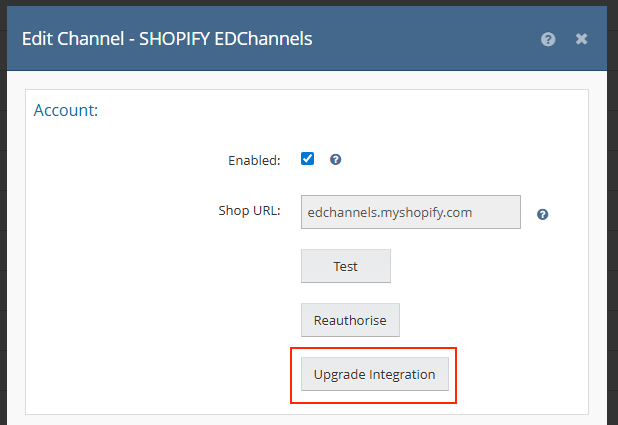
After clicking, the integration switches to the GraphQL version and new configuration options appear (see section 4).
Important notes:
- The upgrade is per-integration. If you have multiple Shopify stores connected to Linnworks, you need to upgrade each one individually.
- No re-authentication is required. Your existing Shopify connection stays active.
- Only new orders downloaded after the upgrade use the new format. Existing orders in Linnworks are not affected.
ℹ️ This button is being progressively released
We are rolling out the button to customers over several weeks. If you do not see the button and have not already upgraded, your account has likely not been activated.
If you would like to get access to upgrade your integrations, please reach out to support@linnworks.com
3. New features and capabilities
Multi-fulfillment support
Orders with multiple fulfillments are now fully supported. This covers:
- Split shipping — different items in the same order shipped to different addresses
- Multiple carriers — different shipping services for different parts of the order
- Multi-location fulfillment — items fulfilled from different warehouse locations
- Mixed delivery — e.g., some items picked up in store (POS) and others delivered
Each fulfillment order from Shopify is saved as its own order in Linnworks, mirroring Shopify's fulfillment structure. Orders with only one fulfillment (most orders) look and behave the same as before. Related fulfillment orders are linked via an order relationship, so they remain traceable. See section 5 for how to control this behavior.
Improved POS order handling
POS (Point of Sale / EPOS) order handling has been overhauled:
- Mixed POS orders are handled properly — e.g., items bought in store but delivered later are tracked separately as individual fulfillments.
- A new config option gives you granular control over stock deduction for fulfilled POS orders.
- POS orders follow the same fulfillment-based logic as all other orders.
If you use Shopify POS, there are required changes to your settings. See section 6 for full details.
Order Taxes - Presentment currency & Tax and duties improvements
There is a new Order Taxes section which houses all of the relevant tax and financial information. This section introduces a new presentment currency option and brings improvements to how Linnworks handles taxes and duties.
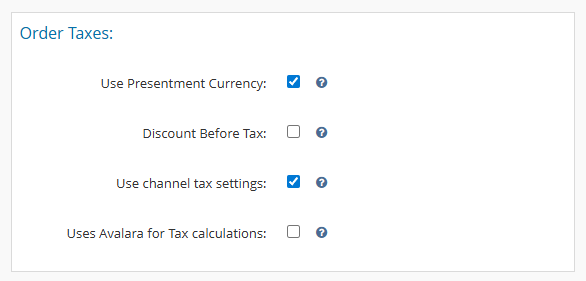
Presentment currency
You can now download orders in the buyer's payment currency (presentment currency) instead of your shop's base currency. This is useful if you sell internationally and want orders in Linnworks to reflect what the buyer actually paid. See section 4 for how to enable this.
Tax and duties improvements
- Avalara support — A new config option for merchants using Avalara's Shopify plugin for US multi-tax-rate calculations. See section 4.
- Duties now download as a Service Item in Linnworks. Service items are not included in customs declaration values sent to shipping integrations, so this does not affect your declared goods value.
- Resident IDs(Tax IDs, Shipping Credentials) now save as Order Extended Properties:
BUYER_TAXIDfor buyer tax identificationSHIPPING_CREDENTIALfor shipping credentials- See Shopify's LocalizedFieldKey reference for the full list.
Faster order downloads
The GraphQL integration delivers approximately 5x faster order download times compared to the REST integration. This benefits all customers but is most noticeable for merchants with large order volumes or frequent flash sales.
4. New configuration options
Four new settings are added to the Shopify integration configuration after you upgrade.
| Setting | What it does | Default |
|---|---|---|
Split Orders by Shopify Fulfillments | Controls whether each Shopify fulfillment order is saved as a separate order in Linnworks. See section 5 for details on how this works and how to choose the right setting | Off for upgrades, On for new integrations |
Deduct Stock for Fulfilled POS Orders | Controls whether stock is deducted when fulfilled POS orders are processed (replaces the old “Process POS orders” setting) | Off |
Use Presentment Currency | Download orders in the buyer's payment currency instead of your shop's base currency | Off |
Uses Avalara for Tax Calculations | Adapts tax calculation for merchants using Avalara's Shopify plugin | Off |
Each option has a tooltip — hover over the ? icon next to each setting for a full description.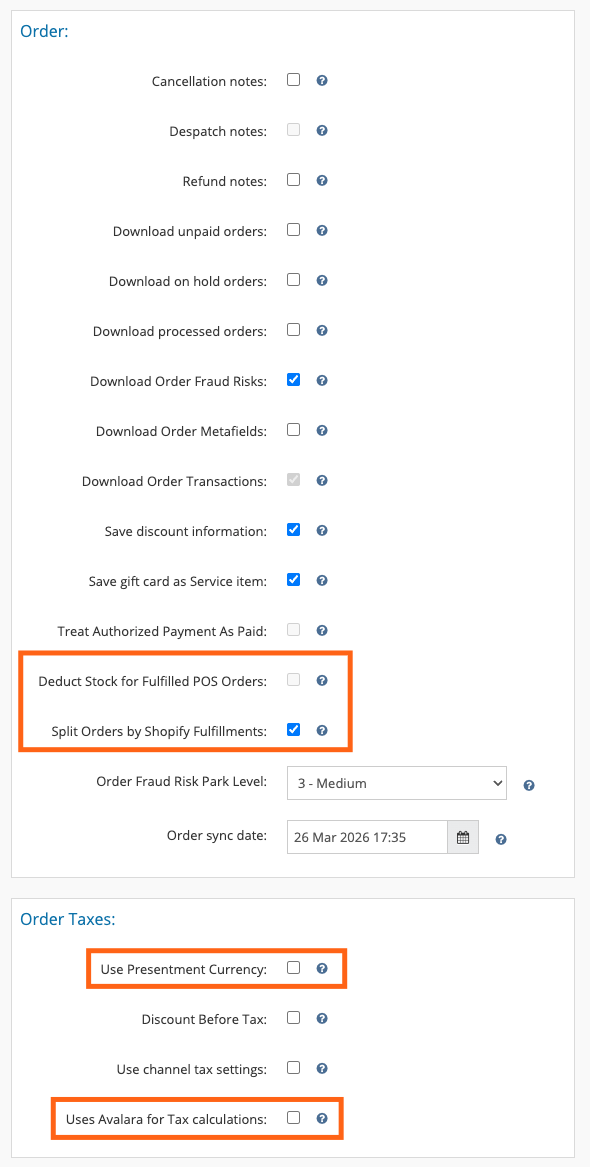
5. Order splitting and Shopify fulfillments
The “Split Orders by Shopify Fulfillments” setting controls how Linnworks handles orders that Shopify splits into multiple fulfillments. This is the most important new setting to understand when upgrading.
If you are upgrading an existing integration, this setting defaults to Off. This means your orders will continue to come into Linnworks the same way they did before the upgrade. Most customers upgrading do not need to change this.
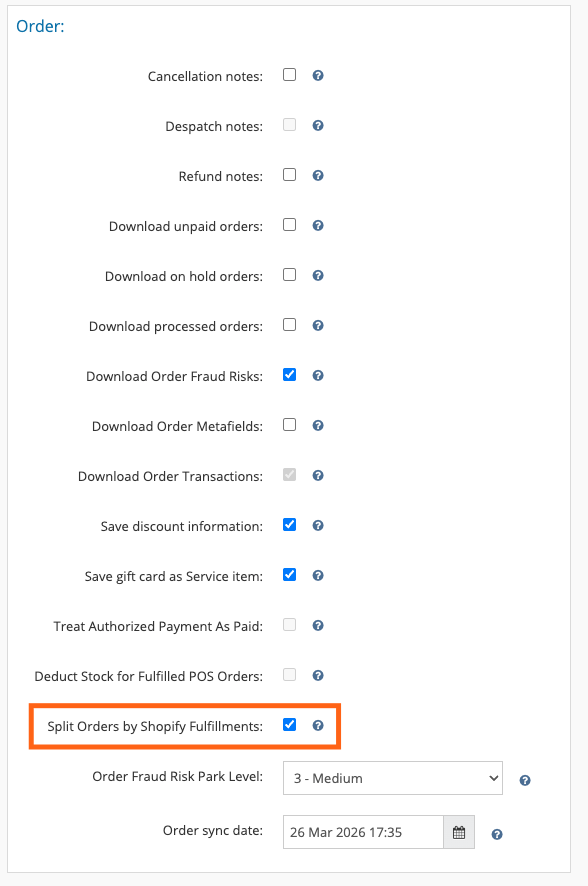
Why does this setting exist?
Shopify can split a single order into multiple fulfillment orders — for example, when items are fulfilled from different warehouse locations, or when different shipping methods are used for different items. The upgraded integration can now handle these fulfillments individually, but not all customers need or want that behavior.
How each setting works
| Setting | What happens | Best for |
|---|---|---|
| Off (default for upgrades) | Fulfillment orders going to the same Linnworks download location are combined into a single Linnworks order. Orders going to different Linnworks locations are still saved separately. | Customers who want orders to behave the same way they did before the upgrade. This is the right choice if you manage fulfillment routing within Linnworks. |
| On (default for new integrations) | Each Shopify fulfillment order is saved as its own Linnworks order, regardless of location mapping. A Block from Merge flag is applied to each order to prevent auto-merging. Related orders are linked via order relationships. | Customers who want Linnworks to mirror Shopify’s fulfillment assignments exactly — for example, if you use Shopify’s routing rules to assign fulfillments to specific locations and want that reflected in Linnworks. |
Examples
| Scenario | Setting Off | Setting On |
|---|---|---|
| Single fulfillment A customer orders 2 items. Shopify creates 1 fulfillment order. | Downloads as 1 order. No Block from Merge flag. | Downloads as 1 order. No Block from Merge flag. |
| Multiple fulfillments, same Linnworks warehouse A customer orders 3 items. Shopify splits them into 2 fulfillment orders (Location 1 and Location 2), but both locations are mapped to the same Linnworks warehouse. | All 3 items download as 1 order (because both locations map to the same warehouse). | Downloads as 2 separate orders (one per fulfillment). Both have a Block from Merge flag and are linked via an order relationship. |
| Multiple fulfillments, different Linnworks warehouses A customer orders 3 items. Shopify splits them into 2 fulfillment orders, and each location is mapped to a different Linnworks warehouse. | Downloads as 2 separate orders (one per warehouse). | Downloads as 2 separate orders (one per fulfillment). Both have a Block from Merge flag and are linked via an order relationship. |
Which should I choose?
- If you are upgrading and your current workflow is working well — leave it Off. Your orders will continue to behave the same way.
- If you want Linnworks to follow Shopify’s fulfillment structure — turn it On. This is useful if you rely on Shopify’s fulfillment routing and want each fulfillment tracked independently.
- If you’re not sure — leave it Off. You can change this setting at any time without re-authenticating or re-syncing.
6. Action required: POS (EPOS) customers
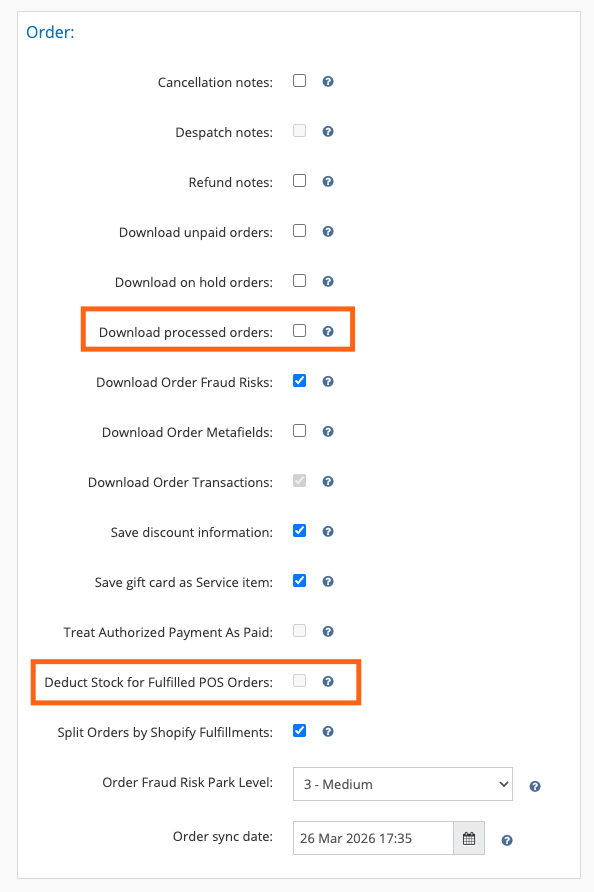
If you use Shopify POS, your settings need to be updated after upgrading. The old “Process POS orders” toggle has been replaced with new, more flexible options.
If you do not update these settings, your POS orders will download but will not auto-process. They will appear in your open orders and require manual intervention. Follow the steps below to restore your POS workflow.
What changed
| Before (REST) | After (GraphQL) |
|---|---|
| A “Process POS orders” toggle controlled whether POS orders were auto-processed | “Process POS orders” is replaced by “Deduct Stock for Fulfilled POS Orders”. POS orders must be marked as fulfilled on Shopify to be processed in Linnworks. “Download processed orders” must be enabled for fulfilled POS orders to appear. Unfulfilled POS orders will still download but will not auto-process. |
How it works
| Scenario | What happens |
|---|---|
| POS order fulfilled on Shopify, “Download processed orders” ON, “Deduct Stock” ON | Order downloads and processes with stock deduction |
| POS order fulfilled on Shopify, “Download processed orders” ON, “Deduct Stock” OFF | Order downloads and processes without stock deduction |
| POS order fulfilled on Shopify, “Download processed orders” OFF | Order does not download |
| POS order NOT fulfilled on Shopify | Order downloads but does not auto-process |
What you need to do
In Shopify:
- Ensure your POS orders are marked as fulfilled. If your POS orders are not automatically fulfilled at the point of sale, you will need to enable this in your Shopify POS settings. See Shopify's guide on fulfilling POS orders for instructions.
In Linnworks:
- Enable “Download processed orders” in your Shopify integration settings (if not already enabled). Without this, fulfilled POS orders will not download.
- Review the “Deduct Stock for Fulfilled POS Orders” setting and enable it if you want stock levels to update when fulfilled POS orders are processed.
7. Changes to order reference IDs and XML
Reference ID format change
- Before:
{ShopifyOrderId}(e.g.,5765413216) - After:
{ShopifyOrderId}-{FulfillmentOrderId}(e.g.,5765413216-6920481792)
Because Linnworks now saves each fulfillment order as its own order, the reference ID includes both parts to uniquely identify each fulfillment. This applies to all orders after the upgrade, including orders with only a single fulfillment.
If you have macros or integrations that match on the exact reference ID format, or if you search for orders by reference ID, you will need to account for the new format.
Order XML format change
The raw order XML stored in Linnworks has changed because the data now comes from Shopify's GraphQL API instead of REST.
Key differences:
- Field names change from PascalCase (e.g.,
LineItems) to camelCase (e.g.,lineItems) - Some fields have been renamed (e.g., custom attributes are now under
customAttributeswithinlineItem, withkeyandvalueinside) - Some fields may have moved or are no longer present
- Many fields will appear blank because GraphQL only requests the specific data needed
The full Shopify order data is still included on each fulfillment order, so all data remains accessible.
Who is affected
These changes affect you if you have:
- Custom macros or extensions that reference the Shopify order reference ID
- XMLExtractor configurations that reference Shopify XML fields
- XML Dispatch Date macros for Shopify
- Rules Engine scripts that parse Shopify order XML
What to do
Update your configuration parameters to match the new field names and casing. For example, if your XMLExtractor config references LineItems, update it to lineItems.
If you have questions about whether your macro or customization will be affected, contact the developer that built it — whether that was a third-party developer, your internal team, or Linnworks. They can review compatibility and make any necessary updates. If you’re unsure who built it, contact support@linnworks.com and we can help.
8. Frequently Asked Questions
Do I need to re-authenticate my Shopify connection?
No. The upgrade is seamless. No re-authentication or reconnection is required.
Will my existing orders in Linnworks be affected?
No. Only new orders downloaded after the upgrade use the new format. Existing orders remain unchanged.
Can I go back to the old REST version if needed?
Yes. Contact Linnworks support if you need to revert to the previous version of the integration.
How do I know if I'm on the new GraphQL version?
If you can see the new config options (Split Orders by Shopify Fulfillments, Use Presentment Currency, Deduct Stock for Fulfilled POS Orders, Uses Avalara for Tax Calculations) in your Shopify integration settings, you are on the GraphQL version.
What does the “Split Orders by Shopify Fulfillments” setting do?
This controls whether Shopify orders with multiple fulfillments are saved as separate orders in Linnworks or combined into one. If you are upgrading an existing integration, it defaults to Off, meaning your orders will behave the same way they did before the upgrade. See section 5 for a full explanation and examples.
My macro or extension stopped working after the upgrade. What should I do?
This is likely due to the order XML format change. Field names have changed from PascalCase to camelCase, and some fields have moved. Review your macro or extension configuration and update the field references to match the new format. See section 7 for details. If you have a customization that was built by Linnworks, contact support so we can update it for you.
My POS orders stopped auto-processing. What happened?
POS order handling has changed with the upgrade. You need to ensure your POS orders are marked as fulfilled on Shopify, enable “Download processed orders” in Linnworks, and review the “Deduct Stock for Fulfilled POS Orders” setting. If these settings are not updated, POS orders will download but sit in your open orders without processing. See section 6 for step-by-step instructions.
How are import duties handled after the upgrade?
Import duties from Shopify now download as service items in Linnworks. Service items are not included in customs declaration values sent to shipping integrations, so your declared goods value is not affected. This is intentional and does not require any action.
How does presentment currency work?
After upgrading, enable “Use Presentment Currency” in your Shopify integration settings. Orders will then download in whatever currency the buyer paid at checkout, rather than your shop's base currency. This is a per-integration setting.
Does this upgrade affect inventory sync or stock levels?
No. The upgrade only affects order download, refunds, and cancellations. Inventory sync and stock level management are unchanged.
9. Additional information
- Shopify GraphQL API Upgrade: What You Need to Know
- Shopify GraphQL API Upgrade for POS Users: Actions
- Shopify GraphQL API Upgrade: FAQs and Troubleshooting
- Shopify GraphQL Admin API documentation
- Shopify's guide on fulfilling POS orders
- Shopify LocalizedFieldKey reference (for tax IDs and shipping credentials)
